





A Wi-Fi network connects your devices to the internet, but it can also become a target for hackers, cybercriminals, and unauthorized users if it is not properly secured. An unsecured network can expose personal information, slow down internet speeds, and give attackers access to connected devices.
The good news is that securing your Wi-Fi network does not require advanced technical skills. By making a few important changes to your router settings and network configuration, you can significantly improve your home network security.
This guide explains how Wi-Fi networks work, the risks of weak security, and the most effective steps to protect your wireless network in 2026.
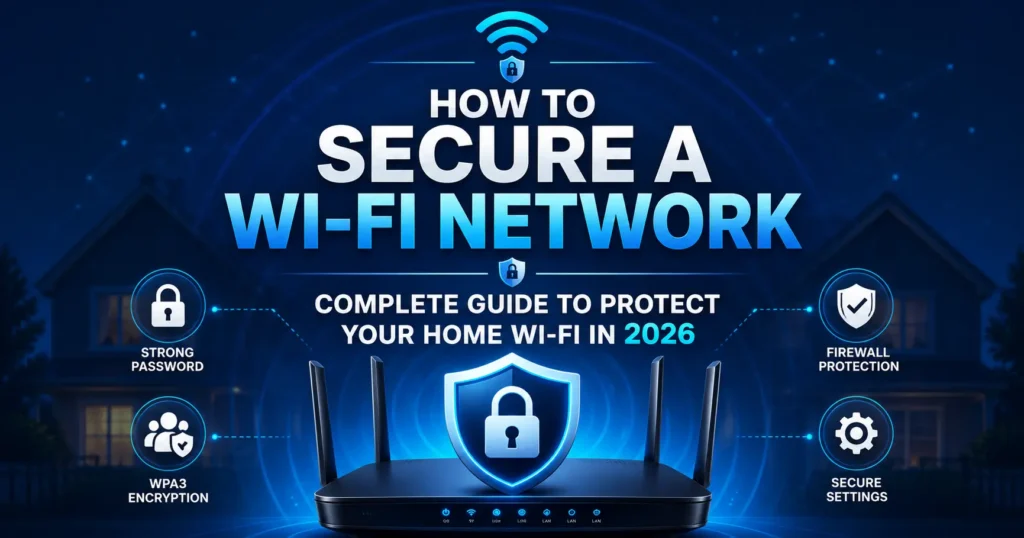
Table of Contents
How Does a Home Wi-Fi Network Work?
Your router receives an internet connection from your Internet Service Provider (ISP) and broadcasts it wirelessly to devices such as smartphones, laptops, smart TVs, gaming consoles, and smart home devices.
Every connected device communicates through the router, making it the central access point of your home network. If the router is not properly secured, attackers may gain access to your internet connection or connected devices.
What Are the Risks of an Unprotected Wi-Fi Network?
An unsecured Wi-Fi network can lead to several security problems.
Common Risks Include:
- Unauthorized access to your network
- Theft of personal information
- Identity fraud
- Malware infections
- Reduced internet speeds
- Access to shared files and devices
- Smart home device compromise
- Router hijacking
Even a strong internet connection can become vulnerable if proper security settings are not enabled.
How to Use Wi-Fi Networks Safely
Before securing your home network, it is important to follow safe Wi-Fi practices.
Avoid Connecting to Untrusted Public Wi-Fi
Public hotspots in cafes, airports, hotels, and shopping centers often lack strong security protections.
Whenever possible:
- Use trusted networks
- Avoid entering sensitive information on public Wi-Fi
- Use a VPN when accessing important accounts
- Disable automatic Wi-Fi connections
Keep Devices Updated
Outdated software can contain vulnerabilities that hackers exploit.
Regularly update:
- Smartphones
- Tablets
- Laptops
- Smart TVs
- Routers
Security updates often patch newly discovered threats.
Disable Automatic Network Sharing
Avoid enabling file sharing and device discovery when connected to public or unfamiliar networks.
This reduces the risk of unauthorized access.
How to Secure Your Wi-Fi Network
1. Change the Default Router Login Credentials
Many routers ship with default usernames and passwords that are publicly available online.
If these credentials remain unchanged, anyone who accesses your network may be able to control your router settings.
Best Practice
Create a unique administrator username and a strong password immediately after setting up the router.
2. Set a Strong Wi-Fi Password
A weak Wi-Fi password is one of the most common security vulnerabilities.
Create a Strong Password By:
- Using at least 12–16 characters
- Combining uppercase and lowercase letters
- Including numbers and symbols
- Avoiding names and dictionary words
Strong passwords make unauthorized access significantly more difficult.
3. Use WPA3 Encryption
Encryption protects data transmitted between your devices and router.
Recommended Security Types
- WPA3 (Best Option)
- WPA2-AES (Good Alternative)
- Avoid WEP and WPA
Older encryption standards can be cracked relatively easily.
Always select WPA3 if your router supports it.
4. Disable WPS (Wi-Fi Protected Setup)
WPS allows devices to connect using a PIN or button press.
Although convenient, it can create security vulnerabilities that attackers may exploit.
Disabling WPS is recommended for better protection.
5. Update Router Firmware Regularly
Router manufacturers release firmware updates that:
- Fix security vulnerabilities
- Improve performance
- Add new security features
- Enhance stability
How Often?
Check for firmware updates every few months or enable automatic updates if available.
6. Create a Guest Wi-Fi Network
Visitors should not have direct access to your primary network.
A guest network:
- Keeps personal devices separate
- Protects shared files
- Limits access to sensitive data
- Improves overall security
Most modern routers include a built-in guest network feature.
7. Disable Remote Management
Remote management allows router settings to be accessed from outside your network.
Unless absolutely necessary, disable this feature.
Doing so reduces potential attack opportunities.
8. Change the Default SSID
The SSID is your Wi-Fi network name.
Default names often reveal the router manufacturer, helping attackers identify potential weaknesses.
Use a unique name that does not reveal personal information.
9. Enable the Router Firewall
Most modern routers include a built-in firewall.
A firewall helps:
- Block suspicious traffic
- Prevent unauthorized access attempts
- Monitor incoming connections
Ensure this feature remains enabled.
10. Disconnect Unknown Devices
Regularly review connected devices in your router dashboard.
If you find unfamiliar devices:
- Disconnect them immediately
- Change your Wi-Fi password
- Add suspicious devices to the blocklist
Routine monitoring helps detect unauthorized access quickly.
11. Limit DHCP Access and Assign Static IPs
Advanced users can increase security by limiting DHCP leases and assigning static IP addresses to trusted devices.
Benefits include:
- Better device management
- Improved monitoring
- Reduced unauthorized connections
This step is optional but useful for larger home networks.
12. Hide Your Wi-Fi Network (Optional)
Some routers allow you to disable SSID broadcasting.
While this is not a replacement for strong security settings, it can reduce network visibility to casual users.
Keep in mind that determined attackers can still discover hidden networks.
Additional Wi-Fi Security Tips
Enable Two-Factor Authentication
If your router supports two-factor authentication, enable it for an additional layer of protection.
Restart Your Router Occasionally
A periodic restart can improve performance and help clear temporary issues.
Replace Old Routers
Older routers may no longer receive security updates.
If your router is several years old, upgrading to a newer model may improve both security and performance.
FAQs
How do I know if someone is using my Wi-Fi?
Common signs include:
Slower internet speeds
Unknown devices connected to the router
Increased bandwidth usage
Router activity lights flashing when devices are idle
Checking connected devices in your router settings can help identify unauthorized users.
What is the safest Wi-Fi security type?
WPA3 is currently the most secure Wi-Fi encryption standard for home networks.
Should I hide my Wi-Fi network name?
Hiding the SSID can provide a small additional layer of privacy, but it should not replace strong passwords and encryption.
How often should I change my Wi-Fi password?
Changing your password every 6 to 12 months is a good practice, especially if multiple people have had access to your network.
Can hackers access my router remotely?
Yes. If remote management is enabled or outdated firmware contains vulnerabilities, attackers may gain access. Keeping firmware updated and disabling remote management significantly reduces this risk.
Is WPA2 still secure?
WPA2-AES remains secure when configured correctly, but WPA3 offers stronger protection and should be used whenever possible.
What should I do if my Wi-Fi network is hacked?
Immediately:
Change the Wi-Fi password.
Change router administrator credentials.
Update router firmware.
Remove unknown devices.
Enable WPA3 encryption.
Restart the router.
Conclusion
Securing your Wi-Fi network is one of the most important steps you can take to protect your digital life. Simple actions such as changing default passwords, enabling WPA3 encryption, updating firmware, disabling WPS, and monitoring connected devices can dramatically reduce security risks.
As cyber threats continue to evolve in 2026, maintaining strong Wi-Fi security practices will help keep your personal information, smart devices, and internet connection safe from unauthorized access.