




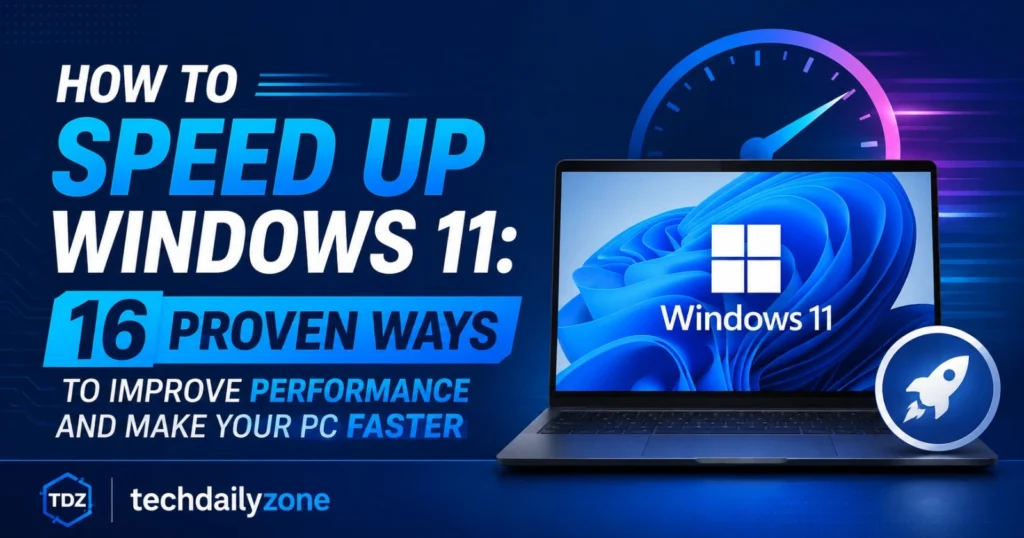
Windows 11 offers a modern interface, improved security, and better productivity features, but over time even the fastest computer can become slow and unresponsive. Startup delays, excessive background processes, low storage space, outdated drivers, and unnecessary visual effects can all reduce system performance.
Whether you’re using a brand-new laptop or an older desktop, there are several effective ways to optimize Windows 11 and restore its speed. In this guide, you’ll learn practical methods to improve performance, reduce lag, shorten boot times, and make your computer run more efficiently.
Why Does Windows 11 Become Slow?
Before applying any fixes, it helps to understand what causes performance issues in Windows 11. Common reasons include:
- Too many startup programs
- Background applications consuming resources
- Low available storage space
- Outdated drivers
- Malware or adware infections
- Excessive visual effects and animations
- Fragmented workflows caused by insufficient RAM
- Old hard drives instead of SSDs
Identifying these issues allows you to target the real cause of slow performance instead of relying on temporary fixes.
1. Disable Programs That Run on Startup
One of the biggest reasons Windows 11 takes a long time to boot is the number of applications that launch automatically.
Many apps add themselves to startup without permission. These programs continue running in the background and consume CPU, memory, and disk resources.
How to Disable Startup Apps
- Press Ctrl + Shift + Esc to open Task Manager.
- Select the Startup Apps tab.
- Review the list of enabled applications.
- Disable programs you don’t need immediately after startup.
Focus on disabling software launchers, chat apps, game clients, and utilities that aren’t essential.
Benefits
- Faster boot times
- Reduced RAM usage
- Better overall responsiveness
2. Turn Off Unused Apps with High Resource Usage
Some applications consume significant CPU and memory resources even when you’re not actively using them.
Open Task Manager and sort processes by:
- CPU Usage
- Memory Usage
- Disk Usage
Identify applications consuming excessive resources and close them if they aren’t necessary.
Regularly monitoring resource usage helps maintain consistent system performance.
3. Use Windows 11 Efficiency Mode
Windows 11 includes Efficiency Mode, a feature designed to reduce power consumption and resource usage from selected applications.
How to Enable Efficiency Mode
- Open Task Manager.
- Select the process.
- Right-click and choose Efficiency Mode.
This feature is especially useful for browsers, background utilities, and applications consuming excessive CPU resources.
4. Download the Latest Windows Updates
Microsoft continuously releases updates that improve stability, security, and performance.
Check for Updates
- Open Settings.
- Navigate to Windows Update.
- Click Check for Updates.
Keeping Windows updated ensures bug fixes, driver improvements, and optimization enhancements are installed.
5. Update Device Drivers
Outdated drivers can cause slow performance, crashes, and hardware issues.
Pay special attention to:
- Graphics drivers
- Storage drivers
- Network drivers
- Chipset drivers
Whenever possible, download drivers directly from your hardware manufacturer’s website for the best compatibility.
6. Free Up Memory and Storage Space
A nearly full drive can dramatically slow down Windows 11.
Remove Unnecessary Files
Delete:
- Temporary files
- Downloaded installers
- Old backups
- Duplicate files
- Unused applications
Use Storage Sense
Windows 11 includes Storage Sense, which automatically removes temporary files and frees storage space.
Benefits include:
- Faster file access
- Better system responsiveness
- Improved update installation performance
7. Clean Out Your Hard Drive
If your computer still uses a traditional HDD, regular maintenance is important.
Run:
- Disk Cleanup
- Optimize Drives tool
These tools remove unnecessary data and improve storage efficiency.
For the largest performance improvement, consider upgrading from an HDD to an SSD.
8. Upgrade to an SSD
If you’re still using a mechanical hard drive, switching to a Solid State Drive is one of the most effective upgrades available.
Advantages of SSDs
- Faster boot times
- Quicker application launches
- Improved file transfer speeds
- Better multitasking performance
Many users experience performance improvements that feel like purchasing an entirely new computer.
9. Add More RAM
Insufficient memory can cause lag, freezing, and slow multitasking.
Signs you need more RAM include:
- Constant disk activity
- Slow browser performance
- Delays when switching between applications
- Frequent system stuttering
For most users in 2026:
- 8GB = Basic usage
- 16GB = Recommended
- 32GB+ = Heavy workloads and content creation
10. Disable Visual Effects and Animations
Windows 11 includes numerous animations and effects that consume system resources.
Disable Visual Effects
- Open Advanced System Settings.
- Select Performance Settings.
- Choose Adjust for Best Performance.
This change can significantly improve responsiveness on older hardware.
11. Disable Transparency Effects
Transparency effects create additional graphical workload.
Turn Off Transparency
- Open Settings.
- Navigate to Personalization.
- Select Colors.
- Disable Transparency Effects.
This small adjustment can contribute to smoother performance.
12. Change Power Settings for Maximum Performance
Many computers operate using balanced power plans that prioritize energy efficiency.
Switching to a performance-focused plan can increase responsiveness.
Recommended Setting
Settings → Power & Battery → Power Mode → Best Performance
This allows Windows to allocate resources more aggressively.
13. Turn Off Search Indexing
Search indexing speeds up file searches but continuously uses system resources.
If you rarely search large numbers of files, disabling indexing can improve performance on older systems.
Disable Indexing
- Open Services.
- Locate Windows Search.
- Stop the service.
- Set Startup Type to Disabled.
14. Remove Adware and Bloatware
Pre-installed software and unwanted programs often consume resources without providing value.
Review installed applications and remove:
- Trial software
- Unused utilities
- Manufacturer bloatware
- Toolbars and browser add-ons
You should also perform regular malware scans using Windows Security.
15. Turn Off Background App Permissions
Many applications continue running even when not actively used.
Restrict unnecessary background activity to conserve resources.
Recommended Actions
- Review installed apps.
- Disable background permissions where possible.
- Remove applications you no longer use.
This reduces RAM consumption and improves battery life.
16. Restart Windows Regularly
Many users leave their computers running for weeks without restarting.
A restart clears temporary processes, refreshes system resources, and resolves minor performance issues.
If your computer feels sluggish, restarting is often the quickest and simplest solution.
Advanced Tips to Make Windows 11 Even Faster
Disable Windows Tips and Suggestions
Windows periodically displays recommendations and notifications that consume resources.
Disabling these suggestions can reduce background activity.
Disable Game Mode If You Don’t Play Games
Game Mode prioritizes gaming-related processes.
If gaming isn’t part of your workflow, disabling it may free resources for other tasks.
Roll Back Problematic Updates
If performance issues begin after an update, rolling back to a previous restore point can help restore stability.
Hardware Upgrades That Deliver the Biggest Performance Gains
Software optimization helps, but hardware upgrades provide the most dramatic improvements.
Best Upgrade Priorities
- Install an SSD
- Increase RAM
- Upgrade to a newer processor
- Improve cooling performance
Combining software optimization with hardware upgrades produces the best long-term results.
Why is my Windows 11 PC running slow?
Windows 11 can slow down due to several reasons such as too many startup programs, low disk space, background apps, outdated drivers, malware, and heavy visual effects. Identifying and fixing these issues improves overall performance.
How can I speed up Windows 11 instantly?
You can instantly improve performance by:
Disabling unnecessary startup programs
Restarting your PC
Closing heavy background applications
Deleting temporary files
These quick fixes often provide immediate speed improvements.
Does upgrading to an SSD make Windows 11 faster?
Yes, upgrading to an SSD is one of the most effective ways to speed up Windows 11. It significantly improves boot time, application loading speed, file transfers, and overall system responsiveness.
How much RAM is recommended for Windows 11?
8GB RAM: Basic usage
16GB RAM: Recommended for smooth multitasking
32GB RAM or more: Ideal for gaming, editing, and heavy workloads
More RAM helps reduce lag and improves multitasking performance.
Is it safe to disable startup programs in Windows 11?
Yes, it is safe to disable non-essential startup programs. However, you should not disable critical system processes, drivers, or antivirus software.
Does disabling visual effects improve performance?
Yes, disabling animations, transparency, and visual effects can improve performance, especially on older or low-end PCs.
How often should I clean my Windows 11 PC?
It is recommended to clean your PC every 2–4 weeks by removing temporary files, uninstalling unused applications, and clearing storage space.
Can Windows updates improve system speed?
Yes, Windows updates often include performance improvements, bug fixes, and driver updates that help improve system stability and speed.
Why does Windows 11 become slow after an update?
Sometimes updates may temporarily slow down your system due to background indexing, driver conflicts, or system optimization processes. Restarting the PC or updating drivers usually resolves the issue.
Can antivirus software slow down Windows 11?
Yes, some heavy antivirus programs can consume system resources and slow down performance. Using a lightweight and optimized antivirus can help maintain better speed.
Final Thoughts
Windows 11 performance issues are often caused by unnecessary startup programs, background applications, outdated drivers, low storage space, and excessive visual effects. By applying the optimization techniques in this guide, you can significantly improve boot times, system responsiveness, and overall stability.
Start with startup optimization, storage cleanup, driver updates, and visual effect adjustments. If performance is still limited, upgrading to an SSD and adding more RAM can transform the user experience.
Following these proven Windows 11 optimization methods will help keep your PC running smoothly, efficiently, and reliably for years to come.