






A slow Android phone can be frustrating. Apps take longer to open, scrolling feels choppy, games stutter, and even simple tasks become annoying. Many people immediately think about performing a factory reset, but that’s often unnecessary.
The good news is that Android lag is usually caused by a few common issues that can be fixed without deleting your data. Whether you own a flagship device or an older budget phone, the methods in this guide can help restore performance and make your device feel significantly faster.
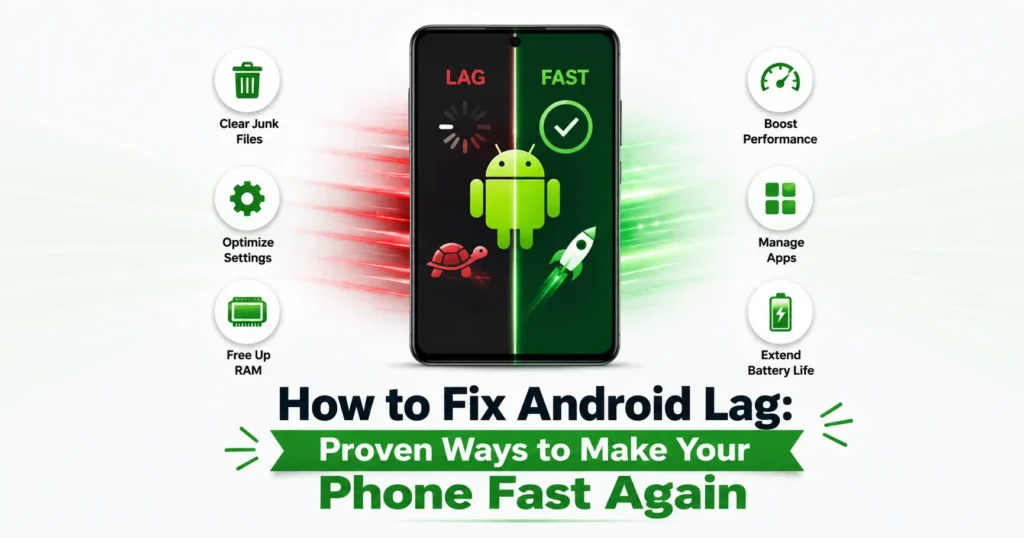
Why Is My Android Phone So Slow?
Android phones slow down over time for several reasons. As more apps, files, and background services accumulate, your device has fewer resources available to handle daily tasks efficiently.
Why Do Android Phones Slow Down?
Some of the most common causes include:
- Low available storage space
- Too many apps running in the background
- Outdated software
- Excessive cached files
- Malware or suspicious applications
- Battery degradation
- Heavy animations and visual effects
- Resource-hungry apps consuming RAM
Understanding the cause is the first step toward fixing Android lag permanently.
1. Restart Your Phone
One of the easiest ways to improve performance is simply restarting your device.
A restart clears temporary memory, closes unnecessary background processes, and refreshes system resources.
Perform a Regular Device Restart
- Press and hold the Power button.
- Select Restart.
- Wait for the phone to reboot completely.
Perform a Forced Device Restart
If your phone becomes unresponsive:
- Hold the Power button for 10–15 seconds.
- Wait until the device reboots automatically.
Many users notice immediate performance improvements after a restart.
2. Free Up Device Storage
Storage plays a major role in Android performance. When storage is nearly full, the operating system struggles to manage files efficiently.
Aim to keep at least 15–20% of storage free.
Manually Clean Up Your Android
Start by removing:
- Unused apps
- Duplicate photos
- Old screenshots
- Large video files
- Downloaded documents you no longer need
Check storage usage through:
Settings → Storage
Run an Automatic Cleanup Tool
Many Android devices include built-in cleaning features that can:
- Remove temporary files
- Delete junk data
- Clear unnecessary cache
- Identify large files
Using these tools regularly helps maintain smooth performance.
3. Clear Cached Data and Browser Clutter
Web browsers often store a large amount of temporary data that can impact performance over time.
Clear Browsing Data
In Chrome:
- Open Chrome.
- Tap the three-dot menu.
- Select History.
- Choose Clear Browsing Data.
Remove:
- Cached images
- Temporary files
- Cookies (optional)
Close Unused Tabs
Hundreds of open browser tabs can consume memory and processing power.
Close tabs you no longer need to free system resources.
Update Your Browser
New browser versions contain:
- Performance improvements
- Security patches
- Memory optimizations
Keeping your browser updated can noticeably improve speed.
4. Identify Apps Causing Lag
Many users assume their phone is slow when, in reality, a few poorly optimized apps are causing the problem.
Check Battery and Resource Usage
Navigate to:
Settings → Battery → Battery Usage
Look for apps that:
- Consume excessive battery
- Run continuously in the background
- Use unusually high system resources
Remove Unnecessary Apps
If an app is rarely used and consumes significant resources, uninstalling it can provide immediate improvements.
Pay special attention to:
- Cleaning apps
- Wallpaper apps
- Unknown utility tools
- Fake optimization apps
5. Install Important Software Updates
Software updates often include performance improvements, bug fixes, and security enhancements.
Update Android
Go to:
Settings → System → Software Update
Install available updates if your device manufacturer still supports the phone.
Activate Automatic App Updates
Open Google Play Store:
- Tap your profile icon.
- Open Settings.
- Enable automatic app updates.
Developers regularly release updates that improve speed and stability.
6. Limit Background Processes
Many apps continue working even after you stop using them.
Background activity can consume:
- RAM
- Battery life
- Processing power
- Network resources
Restrict Background Usage
For non-essential apps:
- Open Settings.
- Select Apps.
- Choose the app.
- Open Battery settings.
- Restrict background activity.
This can dramatically reduce lag on older devices.
7. Turn Off Animations and Visual Effects
Animations make Android look smooth, but they can slow down lower-powered devices.
Enable Developer Options
- Open Settings.
- Tap About Phone.
- Tap Build Number seven times.
Reduce Animation Scales
Inside Developer Options:
Set:
- Window Animation Scale = 0.5x
- Transition Animation Scale = 0.5x
- Animator Duration Scale = 0.5x
You can even disable them completely.
Many users report that their phones instantly feel faster after making this change.
8. Check Hardware and Battery Health
Performance issues are not always software-related.
An aging battery can cause:
- System throttling
- Reduced performance
- Unexpected slowdowns
Signs of Battery Degradation
- Rapid battery drain
- Overheating
- Sudden shutdowns
- Slow performance during demanding tasks
If your battery health is poor, replacing the battery may restore significant performance.
9. Scan for Malware and Suspicious Apps
Malware can secretly consume resources and slow down your device.
Warning Signs
- Excessive ads
- Random pop-ups
- High battery usage
- Unusual overheating
- Unknown apps appearing
Remove Suspicious Apps
Uninstall any app you don’t recognize or no longer trust.
Only download apps from official sources such as the Google Play Store.
Factory Reset: The Last Resort
A factory reset should only be considered after trying every other optimization method.
Factory Reset Comes at a Cost
A reset will erase:
- Photos
- Videos
- Apps
- Messages
- Settings
Always create a full backup before proceeding.
In most cases, users can fix Android lag without needing to reset their phones.
Small Tweaks That Make a Huge Difference
Some additional adjustments can improve responsiveness:
- Disable unnecessary widgets
- Use a lightweight launcher
- Reduce live wallpapers
- Turn off unused Bluetooth connections
- Disable unused location services
- Remove old downloads
- Keep storage below 80% capacity
Individually these changes may seem minor, but together they can significantly improve performance.
Frequently Asked Questions
Why is my Android phone lagging suddenly?
Sudden lag is usually caused by low storage, a problematic app, excessive background activity, malware, or a recent software issue.
Does clearing cache improve Android performance?
Yes. Clearing cached data can free storage space and remove temporary files that may be slowing down apps.
How much free storage should I keep on my phone?
For best performance, maintain at least 15–20% free storage capacity.
Can too many apps slow down Android?
Yes. Even if apps aren’t actively used, many continue running in the background and consume RAM and processing power.
Will updating Android make my phone faster?
In many cases, yes. Software updates often include performance optimizations, bug fixes, and improved resource management.
Is factory reset the best way to fix Android lag?
Not usually. Most performance issues can be resolved through storage cleanup, app management, software updates, and reducing background activity.
How often should I restart my Android phone?
Restarting once every few days helps clear temporary memory and maintain smooth performance.
Final Thoughts
A slow Android phone doesn’t automatically mean it’s time to buy a new device or perform a factory reset. Most lag issues are caused by storage clutter, background apps, outdated software, excessive animations, or poor device maintenance.
By following the strategies in this guide, you can significantly improve Android performance, reduce lag, and extend the lifespan of your device. Regular maintenance and smart app management will keep your phone running smoothly long after it leaves the box.