





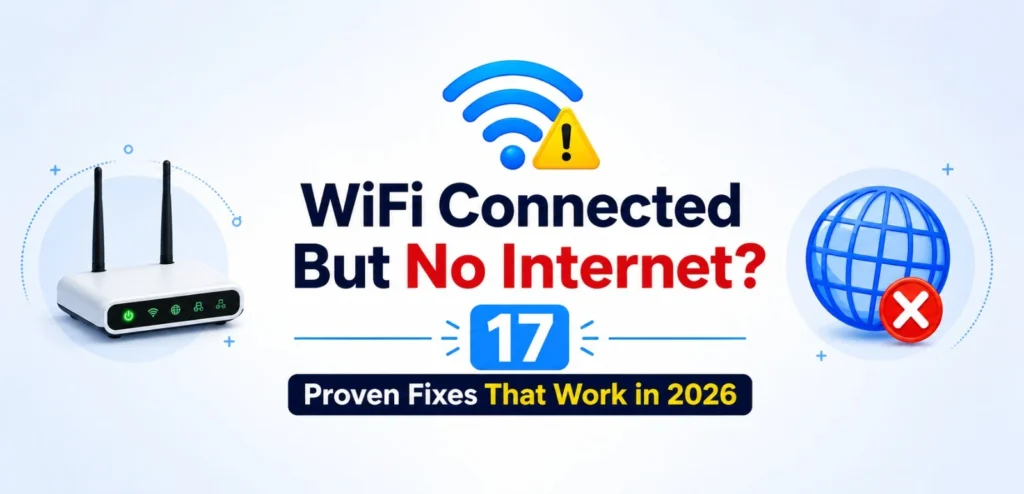
Few technology problems are as frustrating as seeing a WiFi connection icon on your device while websites refuse to load. The message “WiFi connected but no internet” can appear on Windows PCs, laptops, Android phones, iPhones, Macs, smart TVs, and gaming consoles.
The good news is that this issue is usually fixable without replacing your router or contacting technical support. In many cases, the problem comes from a router glitch, incorrect network settings, outdated drivers, DNS issues, ISP outages, or device conflicts.
This guide explains how to identify the cause and provides step-by-step solutions to restore your internet connection quickly.
Key Takeaways
- Restarting your router and modem fixes many connectivity issues.
- ISP outages can cause internet loss even when WiFi remains connected.
- DNS and IP conflicts are common reasons devices lose internet access.
- Outdated network drivers can prevent internet access on Windows devices.
- VPNs, antivirus software, and firewall settings may interfere with connectivity.
- Advanced troubleshooting methods can resolve persistent connection problems.
Why Does WiFi Show Connected But No Internet?
When your device displays a WiFi connection, it means communication between your device and the router is working. However, your router may not be able to reach the internet.
Common causes include:
- Temporary router or modem errors
- ISP outages
- Incorrect DNS settings
- IP address conflicts
- Network driver problems
- Faulty cables or hardware
- VPN interference
- Malware infections
- Overloaded networks
Before applying advanced fixes, determine whether the issue affects one device or every device connected to your network.
Check Whether You Have an Internet or WiFi Problem
Check Your Signal Strength
A weak WiFi signal can cause intermittent internet access.
Move closer to the router and check whether the connection improves. Walls, appliances, and large furniture can reduce signal quality.
Test the WiFi Connection on Another Device
Connect a second device to the same network.
- If all devices lose internet access, the router, modem, or ISP is likely responsible.
- If only one device is affected, the issue is probably with that device’s settings.
Check Your Router and Modem
Inspect the status lights.
Most routers display separate indicators for:
- Power
- WiFi
- Internet/WAN
If the internet light is red, orange, or flashing abnormally, the router may have lost connection to your ISP.
Check for ISP Outages
Internet service providers occasionally experience outages due to maintenance, infrastructure problems, or weather-related disruptions.
Contact your ISP or check their outage page to confirm whether service interruptions are affecting your area.
Quick Fixes for WiFi Connected But No Internet
Restart Your Router and Modem
A simple restart often resolves temporary network issues.
Steps:
- Turn off the modem.
- Turn off the router.
- Wait 60 seconds.
- Power on the modem.
- Wait until all lights stabilize.
- Turn on the router.
- Reconnect your device.
Restart Your Device
Network services can occasionally become stuck.
Restart your:
- Laptop
- Desktop computer
- Smartphone
- Tablet
Then reconnect to WiFi.
Check Network Cables
Loose or damaged Ethernet cables can interrupt internet service.
Inspect:
- Modem cable
- Router WAN cable
- Power adapters
- Ethernet connectors
Replace damaged cables if necessary.
Test Using Ethernet
Connect your computer directly to the router using an Ethernet cable.
If the internet works through Ethernet but not WiFi, the issue likely involves wireless settings rather than the internet connection itself.
Reduce Device Congestion
Too many devices connected simultaneously can strain older routers.
Disconnect unused devices such as:
- Smart TVs
- Cameras
- Tablets
- Gaming consoles
Then test your connection again.
Disable VPN Services
VPN applications can occasionally interrupt internet access.
Temporarily disconnect your VPN and check whether websites begin loading.
Scan for Malware
Certain malware strains modify network settings and DNS configurations.
Run a full system scan using trusted security software and remove any detected threats.
After scanning, restart your device and reconnect to WiFi.
Run the Built-In Network Troubleshooter
Windows
- Open Settings.
- Navigate to System > Troubleshoot.
- Select Other Troubleshooters.
- Run the Internet Connections troubleshooter.
Windows may automatically identify and fix connectivity problems.
Mac
- Open System Settings.
- Go to Network.
- Select your WiFi connection.
- Use the network diagnostics option.
Relocate Your Router
Router placement significantly affects performance.
For better coverage:
- Place the router centrally.
- Keep it elevated.
- Avoid metal objects.
- Keep it away from microwaves and cordless phones.
A better location can improve stability and reduce connection drops.
Advanced Troubleshooting Steps
If basic fixes do not work, try these advanced solutions.
Release and Renew Your IP Address
On Windows:
- Open Command Prompt as Administrator.
- Type:
ipconfig /release
- Press Enter.
- Type:
ipconfig /renew
- Press Enter.
This requests a fresh IP address from your router.
Clear DNS Cache
Corrupted DNS records can prevent website access.
Open Command Prompt and enter:
ipconfig /flushdns
Restart your browser afterward.
Change DNS Servers
Try switching to public DNS providers.
Popular options include:
Primary DNS: 8.8.8.8
Secondary DNS: 8.8.4.4
Or:
Primary DNS: 1.1.1.1
Secondary DNS: 1.0.0.1
Many users notice faster and more reliable browsing after changing DNS settings.
Resolve IP Conflict Issues
IP conflicts occur when multiple devices attempt to use the same address.
Restarting your router usually resolves the problem. If it persists, manually assign unique IP addresses.
Update Network Drivers
Outdated drivers can cause connectivity failures.
To update:
- Open Device Manager.
- Expand Network Adapters.
- Right-click your adapter.
- Select Update Driver.
Install available updates and restart your computer.
Reinstall the Network Adapter
If updates fail:
- Open Device Manager.
- Right-click the network adapter.
- Select Uninstall Device.
- Restart your PC.
Windows automatically reinstalls the adapter.
Reset Network Settings
A network reset removes problematic configurations.
Windows:
Settings > Network & Internet > Advanced Network Settings > Network Reset
Reconnect to WiFi after the reset completes.
Disable Fast Startup (Windows)
Fast Startup occasionally causes networking issues after system boot.
To disable it:
- Open Control Panel.
- Select Power Options.
- Choose “Choose what the power buttons do.”
- Disable Fast Startup.
- Save changes.
Check Time Synchronization
Incorrect system time can interfere with secure internet connections.
Ensure your device automatically synchronizes date and time with internet time servers.
Temporarily Disable Antivirus Software
Some antivirus suites block network traffic due to misconfigured firewall rules.
Disable protection briefly to determine whether it is causing the issue.
Remember to re-enable security software afterward.
Turn Off IPv6
Some networks experience compatibility issues with IPv6.
Disable IPv6 temporarily and test your connection.
If internet access returns, your ISP or router may require additional IPv6 configuration.
Change Wireless Frequency Band
Modern routers usually support:
- 2.4 GHz
- 5 GHz
Switching between these bands can improve stability and performance.
Use a Different WiFi Channel
Wireless interference from neighboring networks may affect connectivity.
Changing channels can reduce congestion and improve reliability.
Analyze Router Logs
Many routers provide system logs.
Review logs for:
- Authentication failures
- Frequent disconnects
- DNS errors
- ISP connection interruptions
These logs often reveal the root cause of recurring internet problems.
Reset Your Router to Factory Settings
If all troubleshooting attempts fail:
- Locate the reset button.
- Hold it for approximately 10 seconds.
- Wait for the router to restart.
You will need to reconfigure:
- WiFi name (SSID)
- Password
- Custom settings
Perform this step only as a last resort.
Upgrade Hardware and Software
Older networking equipment may struggle with modern internet demands.
Consider upgrading if:
- Your router is over five years old.
- Firmware updates are no longer available.
- Connection drops occur frequently.
- Multiple users regularly experience slow speeds.
A modern router can significantly improve reliability and coverage.
Why Does My WiFi Stay Connected but the Internet Keeps Dropping?
Several factors can cause recurring internet drops:
- ISP instability
- Weak WiFi signal
- Overheating router hardware
- Outdated firmware
- Network congestion
- Driver issues
- DNS failures
- Wireless interference
Identifying the underlying cause is essential for a permanent solution.
How to Prevent Future WiFi Connectivity Issues
Perform Regular Maintenance
Restart networking equipment periodically and install firmware updates.
Secure Your Network
Use:
- WPA3 security when available
- Strong passwords
- Guest networks for visitors
Monitor Connected Devices
Remove unknown devices and regularly review your connected-device list.
Keep Drivers Updated
Updated drivers improve compatibility, stability, and security.
Frequently Asked Questions
Why does my device say it’s connected to WiFi but has no internet?
Your device can communicate with the router but cannot reach the internet due to ISP issues, DNS problems, router faults, or incorrect network settings.
How can I quickly fix WiFi connected but no internet?
Start by restarting your modem, router, and device. Then check for ISP outages and test another device on the same network.
What should I do if only one device has no internet access?
Forget the WiFi network, reconnect, update drivers, clear DNS cache, and reset network settings on that specific device.
Can too many devices slow down my WiFi?
Yes. Excessive device connections can consume bandwidth and overload older routers.
Does changing my WiFi password help?
Changing the password removes unauthorized users and may improve network performance if too many devices are connected.
Should I use public DNS servers?
Public DNS providers such as Google DNS and Cloudflare DNS often improve reliability and speed compared to ISP-provided DNS servers.
How do I know if my router needs a firmware update?
Log in to your router’s administration panel and check the firmware version against the latest release from the manufacturer.
Is it safe to share WiFi with guests?
Yes, but using a separate guest network is recommended to improve security and protect your primary devices.
Final Thoughts
The “WiFi connected but no internet” error can result from anything from a simple router glitch to more complex network configuration issues. Start with basic troubleshooting such as restarting your router and checking ISP status before moving to advanced fixes like flushing DNS, updating drivers, or resetting network settings.
Following the solutions in this guide will resolve most connectivity problems and help keep your internet connection stable throughout 2026 and beyond.